FPL
How To Use The Demon Fixture Ticker Tool
19 June 2026
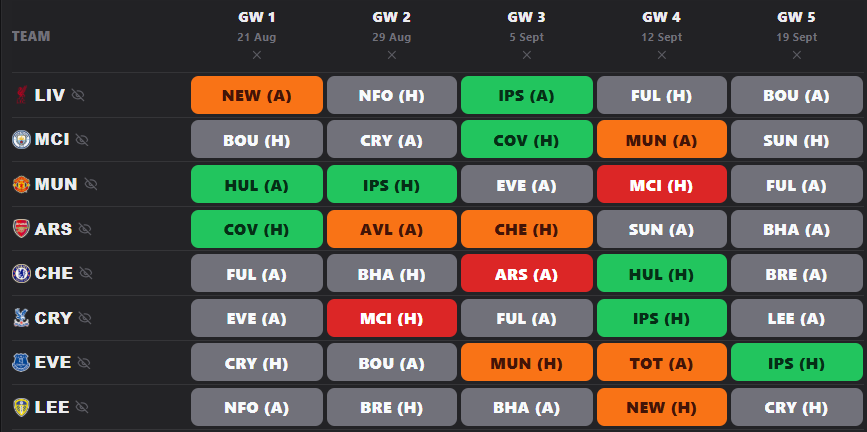
The Demon Fixture Ticker helps FPL managers spot good fixture runs before everyone else piles in. It shows every Premier League team, their upcoming fixtures, and how difficult those fixtures look for attack, defence and overall planning.
Use it when you are building a Gameweek 1 squad, planning a wildcard, choosing cheap defenders, rotating goalkeepers or deciding whether a team has a run worth attacking.
[Screenshot: full Demon Fixture Ticker with the controls open]
What Is An FPL Fixture Ticker?
An FPL fixture ticker is a colour-coded table of upcoming matches. Each box shows one fixture, and the colour tells you how kind or nasty that match looks.
- Green fixtures are easier
- Grey fixtures are average
- Red fixtures are harder
- Dark red fixtures are the ones you usually do not want to target
The idea is simple: find teams with lots of green, avoid teams with a wall of red, and use the ticker to plan transfers before the fixtures swing.
How To Read The Colours
Every fixture gets a Fixture Difficulty Rating. In the Demon ticker, that rating can change depending on whether you are looking at the fixture overall, from an attacking point of view, or from a defensive point of view.
| Colour | Meaning | How to use it |
|---|---|---|
| Green | Good fixture | Target attackers, defenders or captain routes depending on the mode |
| Grey | Middle fixture | Fine if the player is strong, but not a fixture to chase blindly |
| Red | Hard fixture | Be careful buying players just for this match |
| Dark red | Very hard fixture | Usually avoid unless the player is elite or fixture-proof |
[Screenshot: fixture cells showing green, grey, red and dark red examples]
Overall, Attack And Defence
This is the bit most managers miss. A fixture can be good for attackers but not as good for defenders, or the other way round. That is why the Demon ticker has three modes.
- Overall: the quick view. Use this when you just want the general fixture run.
- Attack: best for midfielders, forwards and captaincy. This focuses on how good the fixture is for goals.
- Defence: best for goalkeepers and defenders. This focuses on clean-sheet potential.
If you are comparing Saka, Salah and Haaland, use Attack. If you are choosing a 4.5m defender or rotating goalkeepers, use Defence. If you are just scanning the board, start with Overall.
Choose The Right Gameweek Range
The ticker can show all fixtures, but you do not always need all 38 gameweeks. Most FPL decisions are about the next few weeks, especially early in the season.
- Next 2 GWs: short-term transfers and captain punts
- Next 5 GWs: normal transfer planning
- Next 8 GWs: stronger for wildcard and early team structure
- Next 10 GWs: useful if you are building a long-term draft
- All fixtures: best for checking the full season path
You can also hide a gameweek if it does not matter to you. For example, if you plan to Free Hit in a certain week, remove that week from the ticker and judge the run without it.
Sorting By Easiest Or Hardest Runs
Sorting is where the ticker becomes useful fast. Instead of scrolling through every team, sort by the easiest run and the best fixture blocks jump to the top.
- Easiest puts the best fixture runs first
- Hardest puts the worst fixture runs first
- The sort changes based on your selected mode: Overall, Attack or Defence
That means easiest in Attack mode is not the same as easiest in Defence mode. Attack is looking for goals. Defence is looking for clean sheets.
Planning Rotations
Rotation is for finding teams that work well together. The classic example is two cheap defenders or two goalkeepers. When one has a bad fixture, you want the other one to have a good one.
In the Demon ticker, tap a team row to activate rotation mode. That team stays at the top, and the ticker ranks the best rotation partners underneath it.
- Tap Liverpool, Arsenal, Brighton or any team you want to rotate from
- Switch to Sort by Rotation
- The ticker shows the teams that cover that club's hard fixtures best
- Change the range to 2, 5, 8 or 10 gameweeks depending on your plan
- Tap the selected team again to turn rotation off
This is especially useful for goalkeepers and defenders. You do not need both players to have perfect fixtures every week. You just need one of them to have a playable fixture most weeks.
[Screenshot: rotation mode with one selected team highlighted and the best partners underneath]
Projected Goals
The Projected Goals switch adds an estimated team goals number under each fixture. This helps you judge attacking fixtures without relying on colour alone.
The number is based on fixture difficulty, home or away, and team strength. So Man City at home to a weak side should not look the same as a weaker attack in the same fixture band.
- Use projected goals for attackers
- Use it when deciding captaincy routes
- Use it to compare teams with similar FDR colours
- Higher projected goals usually means better upside for midfielders and forwards
Projected Clean Sheets
The Projected Clean Sheets switch shows clean-sheet chance as a percentage. This is easier to understand than decimal clean-sheet numbers and better for FPL decisions.
- Use clean-sheet percentage for defenders
- Use it for goalkeeper rotation
- Use it to compare premium defences against cheap defensive punts
- A green fixture with a low clean-sheet percentage is a warning sign
If both switches are on, the fixture cell can show both numbers together, for example: 2.1G / 38% CS.
[Screenshot: cells with projected goals and clean-sheet percentage switched on]
Custom FDR Settings
No fixture ticker is perfect. If you disagree with a team rating, open the custom settings and change it.
- Overall changes the general difficulty colour
- Attack changes how hard it is to score against that team
- Defence changes how hard it is to keep a clean sheet against that team
- Your custom FDR still feeds into sorting and projections
This matters because FDR is not one-size-fits-all. A team can be poor defensively but still dangerous in attack. Splitting Overall, Attack and Defence makes the ticker much more useful for actual FPL decisions.
Hiding Teams And Gameweeks
Sometimes you do not care about every team or every gameweek. The ticker lets you remove noise so the useful fixtures are easier to see.
- Hide teams you are not interested in
- Hide gameweeks you are not planning around
- Use Reset to bring everything back
- Use green-only mode when you just want to spot good runs quickly
Best Ways To Use It For FPL
The ticker is not just a pretty table. Use it before you make transfers, before a wildcard, and before picking cheap bench players.
- For attackers: sort by Attack over the next 5 gameweeks
- For defenders: sort by Defence and switch on clean-sheet percentage
- For goalkeepers: use rotation mode over 8 or 10 gameweeks
- For captains: switch on projected goals and look for strong attacking fixtures
- For wildcard: check 8 to 10 gameweeks so you do not build into a bad fixture swing
Demon Verdict
Start simple. Use Overall to find the best fixture runs. Then switch to Attack for your midfielders and forwards, or Defence for goalkeepers and defenders.
If two teams look close, turn on projected goals or clean-sheet percentage. If you are buying cheap defenders, use rotation. That is where the ticker becomes a proper planning tool rather than just a colour chart.